How to Manage CRM User Permissions: Best Practices
How to set up CRM roles and user permissions step by step: prerequisites, a role matrix, external collaborators, best practices and the mistakes to avoid.

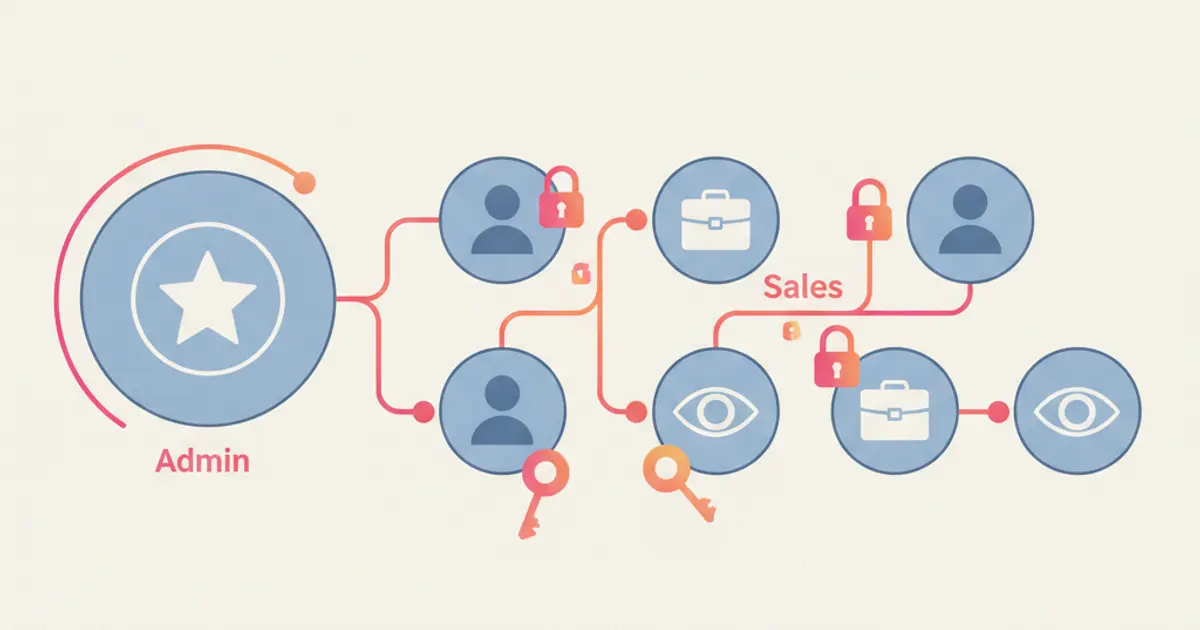
To manage user permissions in a CRM, start from a list of who does what, translate it into four or five roles and no more, then give each role the minimum access it needs to work. The two decisions that actually matter are who can see financial data (margins, commissions, invoices) and who can see other people's contacts. Everything else is detail you can adjust later.
If everyone in your CRM currently sees everything and that has started to worry you, by the end of this guide you will have a written role structure, a procedure to apply it and a way to check that it really works.
What you need before you start
You do not need a project plan. You need four concrete things you can gather in half an hour.
You need administrator access to the CRM, because role and permission settings are almost always reserved for that level. You need an up to date list of the people who will use the system, including external collaborators and occasional users. It is normal to discover at this stage that two or three accounts belong to people who no longer work with you.
You then need an explicit answer to three questions: who can see margins and commissions, who can export contact lists, and who can permanently delete records. If you do not decide these first, you will end up deciding them one at a time while configuring, and the result will be inconsistent.
Finally you need half an hour with whoever runs sales, because contact visibility is a commercial decision before it is a technical one. If the CRM has just been activated, do this alongside the rest of the setup: the guide on the first 30 days with a CRM puts the steps in the right order.
How to set up roles and permissions step by step
Write down the people and their tasks before you open the CRM. On one sheet, put names on the left and what each person does in a typical week on the right: who calls clients, who prepares quotes, who delivers the work, who issues invoices. By the end of this you will have seen for yourself that people group into four or five categories, not ten.
Open the users section of your CRM, usually found under Settings, and review the list of active accounts. Immediately deactivate the ones that match nobody on your sheet: former employees, collaborators whose projects have ended, trial accounts created during evaluation. When you are done, the number of active accounts should match the number of rows on your sheet exactly.
Define the roles, starting from the most restricted one. The typical mistake is to start from the administrator and take things away. It works much better to start from the narrowest role and add only what is needed. Create the operator role first, then the salesperson, then the manager, then finance, and the system administrator last.
Set permissions on financial data. This is the most sensitive decision: establish whether a salesperson sees the margin on a deal or only the price, and whether they see their colleagues' commissions. In most SMEs the sensible answer is that the salesperson sees the price and their own compensation, the manager sees team margins, and finance sees amounts but not the negotiation notes.
Set contact visibility. Here you choose between three models: everyone sees only their own contacts, everyone sees their group or territory, or everyone sees everything in read only mode. The second one handles growth best, because it avoids both overlaps and gaps when someone is on holiday.
Assign a role to every user and verify it through their eyes. Log in with a test account for each role, or ask one person per role to open the CRM in front of you. If a salesperson can see a menu item they should not, you find out now rather than in six months, once somebody has already exported something.
For a team of ten, this procedure takes between forty minutes and an hour and a half, almost all of it spent on the first two steps.
Typical SME roles and what each one should see
Four or five roles cover almost every case. This matrix is a starting point to adapt, not a template to copy literally.
| Role | Contacts | Deals | Financial data | Settings |
|---|---|---|---|---|
| Administrator | All | All | Full | Yes |
| Sales manager | Team | Team | Team margins | No |
| Salesperson | Own | Own | Price and own commission | No |
| Operator | Active clients only | Read only | No | No |
| Finance | Company records | Read only | Amounts and invoices | No |
| External collaborator | None | None | No | No |
The administrator should be one person, at most two in companies above twenty people. Every extra administrator is another copy of the house keys.
The sales manager needs to see the whole perimeter of their team in order to reassign deals when necessary, but rarely has a reason to touch system settings.
The salesperson works better with a clean view of their own contacts. The temptation to grant global access "so they can see how it is done" almost always produces confusion and a few duplicate calls to the same clients.
The operator who delivers the work needs active clients and projects, not the pipeline. Someone working in the warehouse, for instance, accesses the inventory and orders section with no visibility on commercial data at all.
Variant: external collaborators and freelancers
External collaborators cause the most trouble, because they often get treated like employees out of convenience. The practical rule is that an external person should never have access to the client list: they see only the tasks and documents of the projects you assigned to them.
If your CRM offers a dedicated portal for clients and collaborators, use it instead of an internal account. It exists precisely to let somebody in on a narrow perimeter without opening up the rest. Put the access revocation date in the calendar at the same time as the end date of the collaboration, otherwise the revocation never happens.
Variant: multiple offices, territories or branches
Once the team goes past twelve or fifteen people, roles alone stop being enough and you need a second dimension: the group. A salesperson in the north and one in the south share the same role but work on different perimeters.
In practice you create groups (areas, branches, product lines), assign each person to a group, and set contact visibility at group level. The area manager sees their own group, the leadership sees all of them. If your CRM can automate assignment, have new contacts land directly in the correct group based on region: you avoid both territory disputes and forgotten leads.
Variant: small team on a modest budget
If there are three or four of you and your plan offers only a handful of predefined roles, that is enough. Keep a single administrator, put everyone else on an operator role, and use the one lever that really matters at this size: hiding financial data from those who should not see it.
A CRM with basic permissions used well protects more than a system full of rules nobody maintains. When you evaluate a higher plan, the useful criterion is not the number of available roles but whether financial data can be separated from the rest. If you want to go deeper into selection criteria, the guide on choosing a CRM for an SME covers them in detail.
Alternative method: start from the data instead of the roles
There is a second way to reach the same result, useful when job titles are blurry and people do a bit of everything. Instead of starting from people, start from data: list the categories of information in the CRM (company records, deals, quotes, projects, invoices, settings) and for each one decide who reads, who writes and who deletes.
The end result is equivalent, but this approach makes asymmetries obvious. It often reveals that nobody should be able to permanently delete a company record, and that deletion should be replaced by archiving. It is also the approach that documents best, because it produces a table you can attach to your internal procedures.
Best practices that actually matter
Fewer roles, clearer ones. With fifteen roles for twelve people nobody remembers the differences and the system stops being maintained. Four to six roles cover every SME scenario.
No permanent permission for a temporary need. If someone needs access to something for a week, schedule the revocation on the same day you grant the access.
One owner per record. For every contact and every deal it must be clear who is responsible. That is the condition that keeps limited visibility from turning into gaps.
A fifteen minute review every quarter. Check three things: active accounts that no longer match active people, people who changed job without changing role, and unusual bulk exports or deletions in the activity log.
Export is a separate permission. Seeing a list and being able to take it out of the company are two different things. Keep them apart, because the second one is what counts on the day somebody leaves.
Common mistakes
Giving everyone administrator rights because it is quicker. It is, in exactly the same way that leaving the safe open is quicker. The cost stays invisible until it arrives, and then it is high.
Configuring permissions and never testing them. A permission that has not been tried by logging in as the affected user is an assumption, not a configuration. Verification takes five minutes per role.
Forgetting to update permissions when someone changes job. The salesperson promoted six months ago who still works with their old permissions is by far the most common situation, and it produces a steady stream of requests for help to colleagues.
Data protection, traceability and accountability
Limiting access to personal data to those who genuinely need it is one of the principles that European data protection rules are built on, together with the ability to reconstruct who did what. An activity log and a documented permission structure are therefore useful twice over: they reduce incidents and they let you demonstrate how access is organised. The topic is broader than any single configuration can cover, and you will find it treated in the guide on GDPR and data protection in a CRM. For the obligations that apply to your specific business, the official reference in Italy is the data protection authority.
These are general organisational guidelines: for your specific case, check with your privacy consultant or accountant.
Now that roles are in place, the natural next step is deciding what happens automatically inside those perimeters: assignments, reminders and handovers.
Frequently asked questions
How many roles does a company of ten people actually need? Four: administrator, manager, salesperson, operator. Finance can use the operator role with invoice access added. Above fifteen users it is better to add a group or territory dimension than to multiply roles.
Should salespeople see their colleagues' contacts? In read only mode yes, with edit rights no. Read only access stops two people from calling the same client in the same week; the edit restriction stops anybody from changing the status of a deal they are not working on.
How do I give an external collaborator access without exposing my clients? Give access only to the assigned projects, preferably through a dedicated portal rather than an internal account, and set the deactivation date at the same moment you create the access.
What do I do when somebody leaves the company? Deactivate the account the same day rather than deleting it, so the activity history stays linked, and reassign their contacts and deals to another person before anyone notices by accident.
Share this article
Written by
Luca Bosso
Founder of Flusia
Related articles

How to Manage Online Bookings and Appointments
How to let clients book appointments from a public page: appointment types, real availability, calendar sync, automatic reminders and no double bookings.

Client Portal: Transparency That Builds Loyalty
Discover how a client portal integrated in your CRM improves transparency, reduces support requests and builds lasting client loyalty.

Project Management Guide: Gantt, Kanban and Task Management
A practical guide to managing projects with Gantt charts, Kanban boards and task tracking inside your CRM.