How to Sync Contract Data With Your CRM
How to sync contract data between your CRM and your management software: who owns each field, which way the sync runs and how to check nothing is lost.

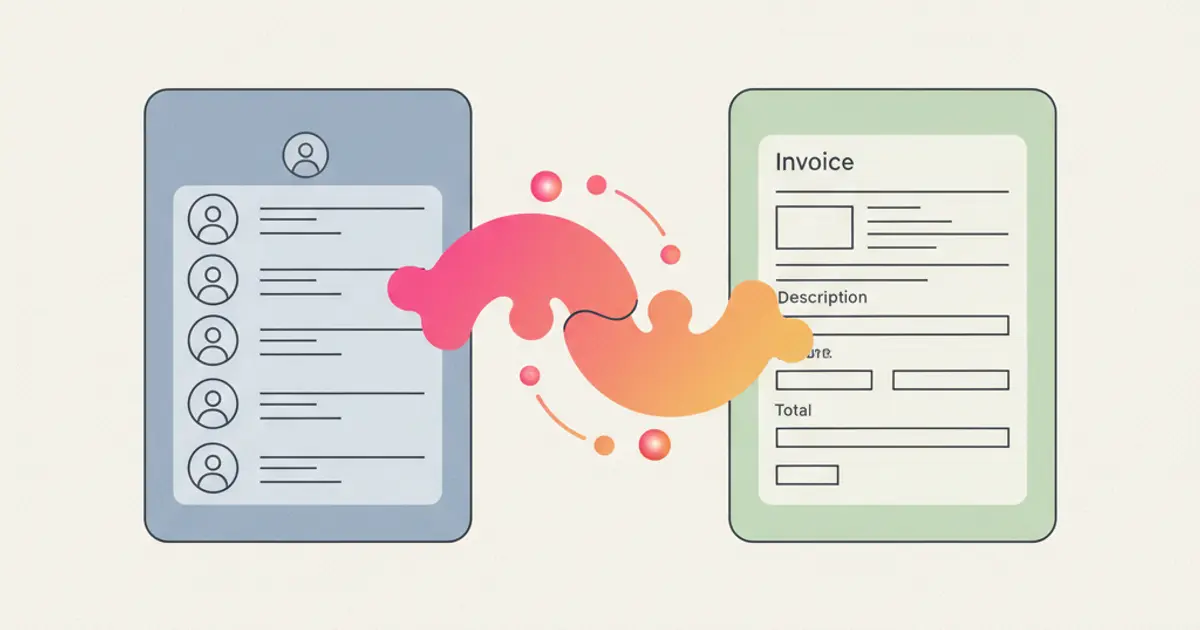
To connect your CRM and your management software you decide which of the two owns each piece of data, then set up a sync that runs in one direction only, on the fields that really have to travel: the customer record, the documents you issue and the payment status. You pick one key that identifies the same customer in both archives, in Italy usually the VAT number, and you let one system write while the other reads. Everything else, internal notes, activity history, working statuses, stays where it already lives.
If today somebody retypes every new client twice and nobody can say which address is the good one, by the end of this guide you will have a connection that works, a written rule for what syncs and what does not, and a way to check that it is still running.
What you need before you start
- A customer list exported from both systems, to see how many records exist twice, how many differ, and how many have no VAT number.
- The identifying key: VAT number for companies, tax code for private clients, an internal customer code for the cases that have neither.
- Administrative access to both tools, since connections are authorised from the settings area.
- A decision on who owns what, written down before you touch any setting. This is the whole job, the technical part is the easy half.
- One person who checks the connection. A sync without an owner breaks silently, and you find out weeks later from a client complaining about an old address on their invoice.
- A test customer, invented: "Rossi Impianti Srl",
amministrazione@esempio.it.
Decide who owns each piece of data
These projects fail for one reason: both systems are allowed to write the same field. The last edit wins, and it is often the wrong one. Assign an owner to each block of data first.
| Data | Who owns it | Direction | On the other side |
|---|---|---|---|
| Customer record (name, VAT, address) | CRM | CRM to accounting | created or updated automatically |
| Tax details, payment terms | accounting | accounting to CRM | read only, nobody edits them |
| Quotes and offers | CRM | stays in the CRM | only the accepted one crosses over |
| Invoices and credit notes | accounting | accounting to CRM | visible on the customer record |
| Payment status | accounting | accounting to CRM | can trigger a reminder |
| Products and prices | wherever the price list lives | one direction only | the other side reads, does not edit |
| Notes, calls, activities | CRM | does not travel | no reason to send them anywhere |
The rule of thumb: whoever creates the data first owns it. And prefer a one way sync, because two way needs a conflict rule for every field and nobody remembers those rules six months later.
The key that links the two archives
The systems have to recognise that "Rossi Impianti Srl" and "ROSSI IMPIANTI S.R.L." are the same company, and they can only do it through a field with an exact match, never through the name.
Use the VAT number as the primary key. It is unique, it is already required for invoicing, and it does not change when the company moves office. Normalise it first: no spaces, no country prefix if your archives do not carry one. Use the tax code for private clients, and an internal code such as CL-0412 for the records that have neither.
Then deduplicate, before you switch anything on. Sort both exports by the key, look at what appears twice, merge in the CRM keeping the record with the most recent activity. Doing this later costs more, because by then every duplicate has documents attached to the wrong record. If you are also loading a legacy list, the steps are in the guide on how to import your customer list.
Step by step: connecting the two systems
1. Freeze new entries for an hour, so no record is created on both sides while the first alignment runs.
2. Open the integrations area of your CRM and start the connection. It normally sits under settings, in a list of available connections. You authorise access with the credentials of the accounting system, and you should end up with a connection shown as active, with the date of the last exchange. What can be connected in Flusia is listed on the page of available integrations, and the accounting side is described in the guide to the Fatture in Cloud integration.
3. Map the fields one by one, and write the mapping down. Company name, VAT number, tax code, address, billing email, payment terms. Where a field exists on one side only, decide explicitly to drop it instead of parking it somewhere.
4. Set the direction for each block. Master data leaves the CRM, documents and payments arrive from the accounting system. If a two way option is offered, leave it off for now.
5. Run the first sync on the test customer only. Create "Rossi Impianti Srl" with VAT number 01234567890 and amministrazione@esempio.it, then check it appears on the accounting side within minutes, address in the right field. Then change the address and check the change travels too. If it does not, the problem is the mapping, not the connection.
6. Align the existing archive. Expect a list of unmatched records: customers present on one side only, or with a key that matches nothing. Work through it by hand, it is usually shorter than you fear.
7. Send one real document through. Invoice an accepted quote with your normal process, checking that amounts, lines and tax details arrive without anyone retyping them. If you are unsure what a quote should carry, the structure is in the guide on how to write a quote.
8. Write the rule on one page and share it. New customers are created in the CRM, invoices are issued in the accounting system, nobody edits an address on the administrative side.
When syncing invoicing is enough
For a service company, an agency or a professional firm, the connection that pays for itself is the narrow one: customer records out, issued documents and payment status back in. Nothing else.
You gain two things. The commercial side stops asking administration whether an invoice has been paid, because the answer sits on the customer record. And the customer data exists once, so a change of address is made in one place. It is also the setup that survives longest, having few moving parts.
Syncing contract data: what travels and what stays put
Contract data is the block most connections forget, and it is the one that costs money when it goes missing: a fee still being invoiced months after the agreement ended, or a renewal nobody prepared because the date lived in a folder. The method is the same you used for the customer record, applied to a different set of fields: decide who owns each one, move it in a single direction, and leave in place everything that needs to be read rather than copied.
Before mapping anything, separate two things that both get called "the contract". There is the signed document, the PDF with its clauses and annexes, and there is the contract record, a short list of structured fields that describe it: number, dates, amount, frequency, status. Only the second one syncs. The document stays in the archive that holds it and travels as a link, never as a copy in both systems.
| Contract data | Who owns it | Direction | On the other side |
|---|---|---|---|
| Contract number | CRM | CRM to accounting | written on every document issued |
| Start date | CRM | CRM to accounting | opens the first billing period |
| End date | CRM | stays in the CRM | invoicing does not need it |
| Renewal date | CRM | stays in the CRM | drives a reminder, not a document |
| Recurring amount | CRM until signature, accounting afterwards | CRM to accounting, once | the invoiced figure is the accounting one |
| Billing frequency | accounting | accounting to CRM | read only on the customer record |
| Signed document | the archive where it is stored | link only, never the file twice | opened from the record |
| Status: active, suspended, ended | CRM | CRM to accounting | stops or resumes recurring billing |
| Clauses, notice terms, annexes | the document | does not travel | read in the PDF, never retyped into a field |
| Negotiation drafts, internal notes | CRM | does not travel | no reason to send them anywhere |
Two details decide whether this works. The first is the contract number. Give it a fixed format, for example CT-2026-014, generate it on the side that creates the contract, and use it as the second key under the VAT number: one customer can have four live agreements, and without a number the documents attach to the customer instead of to the right one. The second is the status field. It is the only contract field that has to travel the day it changes, because a contract marked as ended in the CRM and still active on the administrative side produces an invoice next month that somebody will have to cancel by hand.
Keep the amount as the signed figure, not as the last invoiced one. If a price rises mid term, do not overwrite the field: close the current period with an end date and open a new row from the day the new amount applies. You lose nothing and you can still answer the question of what was agreed in March. Everything that happens around these dates, the reminders set weeks ahead, who prepares the proposal, how an increase is announced, is organisation of work rather than sync of data, and it is covered in the guide on how to manage contract renewals.
When sales works in one country and administration on another system
It is a common setup: the commercial team sits in one country and signs in the local language and currency, while administration issues documents from a different system elsewhere. Four things change in practice, and none of them is technical.
The amount needs a currency next to it. Store the contract in the currency it was signed in, and treat that figure as the one that never changes. The accounting side will hold converted values for its own books, on its own exchange rate and its own date: let those stay there, and do not sync them back over the signed amount. One field for currency, one for the figure, and the conversion belongs to whoever closes the accounts.
The identifying key is not always an Italian VAT number. A company registered abroad carries an identifier in its own national format, with a different length and often a country prefix. Keep the key field free of format validation built for one country only, store the country code in a separate field, and fall back to the internal customer code for the records that fit neither. Which identifier has to appear on a document issued abroad is a fiscal question, not a mapping one, so settle it with your accountant before you decide what the field must contain.
Dates have to be plain dates. If one system stores a renewal as a timestamp and the other reads it from a different time zone, a date set at midnight can be displayed as the previous day, and a renewal window moves by twenty four hours for the person who has to act on it. Agree that anything contractual travels as a date without a time, and that reminders are calculated locally by whoever receives them.
One archive holds the signed document. Usually the side that signed it, which is often the commercial one. The other system gets the link and the contract number, not a second copy: two copies of the same agreement in two countries is how a version signed in June and a version signed in September end up both looking current.
How to sync contract data step by step
The order matters more than the tool. You decide the fields on paper, you clean up the contract numbers, then you connect, and you put one single real agreement through before you go anywhere near the whole archive. For a few dozen live contracts the sequence below is an afternoon of work, and most of that afternoon is spent on decisions rather than on settings.
1. List the agreements that are actually running. Open your customer list and mark, client by client, every live commitment: monthly retainers, maintenance fees, licences you resell, projects paid in instalments. Write the total at the top of the list. You should end up with a count you can compare against later, and usually with two or three agreements nobody had in mind.
2. Decide who owns each contract field, and write it down before touching any setting. Use the table below as your starting point and delete the rows that do not apply to you. The column people skip is the fourth one: it says what has to happen when the two systems disagree, and it is the only thing that will save you the day they do. The connections that can carry this kind of data in Flusia are listed on the page of integrations, so check what your pair of systems can exchange before you promise yourself a field.
| Contract field | Which system owns it | Direction of the sync | What happens on conflict |
|---|---|---|---|
| Contract number | CRM | CRM to accounting, once when the contract is created | the CRM value wins and the accounting reference is corrected, never the other way round |
| Customer key (VAT number or internal code) | CRM | CRM to accounting, with every contract | the row is rejected and waits for a person; no second customer is ever created |
| Start date | CRM | CRM to accounting, once | the CRM value wins, because it is the date on the signed document |
| Signed recurring amount | CRM up to signature | CRM to accounting, once per period | neither side overwrites: you close the period and open a new row from the new figure |
| Billing frequency | accounting | accounting to CRM | the accounting value wins and the CRM field stays read only |
| Date of the next document | accounting | accounting to CRM | the accounting value wins, since that is the system that will issue it |
| Status: active, suspended, ended | CRM | CRM to accounting, the same day it changes | the CRM value wins and recurring billing follows it within the day |
| Signed document | the archive that stores it | link only, in both directions | if two copies exist, keep the one in the owning archive and replace the other with a link |
3. Give every live contract a number in one single format. Sort the list from step 1 by contract number and look for the three things that always turn up: blanks, the same number used twice, and two formats living side by side because somebody changed the convention in March. Fix them in the CRM, using a fixed pattern such as CT-2026-014. At the end every running agreement has one unique number, which is what lets a document attach to the right contract instead of to the customer.
4. Map only the fields in your table, in the integration settings. Open the settings area of your CRM, go to the connection you authorised for the accounting system, and open its field mapping. Map the rows of your table and leave everything else deliberately unmapped, including anything that looks harmless like a description or a note. When you save, the number of mapped fields should match the number of rows you wrote down, and the connection should still show as active with today's date on the last exchange.
5. Run one invented contract all the way through. Stay on the test client used earlier in this guide, "Rossi Impianti Srl" with amministrazione@esempio.it, and create a contract CT-2026-014 starting on 1 October 2026, monthly, at a made up figure of 480 euro. Check on the accounting side that the number, the start date and the amount arrived in the fields you mapped, then issue the first document from it. The reference of that document should carry CT-2026-014 without anyone typing it.
6. Break it on purpose, once. Set the test contract to suspended in the CRM and look at the accounting side on the day the next document was due: nothing should be prepared for that client. Set it back to active and check the schedule picks up again. This is the one test worth doing twice, because a status that does not travel is what produces an invoice after a client has left, and that invoice then has to be cancelled by hand.
7. Align the contracts that were already running. Work down the list from step 1, oldest first, and for each agreement compare five things on both sides: number, start date, signed amount, frequency, status. Expect a handful that match nothing, usually contracts renewed verbally or amounts changed without a new document. When you finish, the count of active contracts is the same in both systems, and that equality is the check you will repeat later. The accounting half of this exchange, if your documents live in Fatture in Cloud, is described step by step in the guide to connecting your invoicing.
8. Give the contract list one owner and one date in the month. Ten minutes, once a month: the count on both sides, the contracts ending in the next sixty days, the ones whose amount changed. A synced field tells you what a contract says; only somebody looking at the list tells you what is about to happen with it. What that person actually does with the dates they find is the subject of the guide on preparing renewals.
Common mistakes when syncing contract data
- Deleting the contract record when the agreement ends. It disappears from the CRM, and with it the reason every past invoice exists: next year nobody can say what that client was paying and why. Set the status to ended instead, with the real end date. If a record has already been deleted, rebuild it from the signed document and the invoices issued, put it back with its original dates and mark it ended, so the documents stop being orphans.
- Renewing by editing the old row. You change the amount and the dates on the existing contract, the archive now shows one agreement whose figure does not match any of the invoices issued before it, and the difference looks like a billing error to anyone reviewing it. Renew by creating a new row that starts the day after the previous one ended. To recover, reopen the signed documents, work out when each figure applied, and split the row into the periods that really existed.
- Sending the renewal date to the accounting system. It is a date that exists to warn a person, and in a system whose job is issuing documents it eventually becomes a date something is issued from. Unmap that field, keep the renewal date in the CRM only, and rebuild the warning where the commercial side will see it. If a document has already gone out on a renewal that nobody had confirmed, it is corrected with a credit note, not by editing what was sent.
If you are still deciding whether your two systems can exchange any of this, the honest first move is to look at what is available rather than plan on paper: the integrations page lists the connections you can set up today, and the 30 day trial is long enough to run one contract through a full billing period before you commit to anything.
When you also need stock or jobs
Two situations justify a wider connection.
The first is selling physical goods. Quantities have to stay consistent between order, shipment and document, otherwise you sell something you do not have. Stock movements need a single owner: the system where goods physically enter and leave. If part of your orders arrive from an online shop, catalogue and quantity alignment is covered in the guide to warehouse management.
The second is working by jobs or projects. To know what a piece of work left you, the supplier costs recorded on the administrative side have to land on the job, next to hours and revenue. Otherwise the margin you read is just the invoiced amount, which is not a margin. How a job is opened and closed is in the guide to managing client jobs.
Add the extra flow only after the basic one has run quietly for two weeks: a connection built in layers can be diagnosed, one built all at once cannot.
When your management software has no API
It happens, especially with older installations on a local server. Three options, in order of preference.
Look for an export that can be scheduled. Many systems can drop a CSV file into a folder every night, which is enough for a one way flow.
Reverse the direction. If the accounting system cannot receive, let it send: documents and payments travel towards the CRM, master data is typed by hand. You keep the visibility benefit.
Set a manual cadence and respect it. One export a week, same day, same person. A weekly exchange that happens beats a real time one nobody ever set up.
Alternative method: the scheduled file exchange
You agree on a format, typically CSV with a fixed column order starting from the key. One system writes the file, the other reads it on a schedule. The critical detail: the file should contain only what changed since the last run, otherwise every import rewrites the archive and manual corrections disappear.
The limits are real. Payment status stays hours behind, there is no error feedback unless somebody reads the log, and past a few thousand rows it stops being practical.
How to verify the sync is really working
A connection that is switched on is not the same as a connection that is working. Three checks, five minutes each.
- The counter check. Once a week, compare the number of customers on both sides. A gap that grows means something is being silently rejected.
- The round trip check. Change the phone number of the test customer and see whether it travels.
- The error log. Read it once a month: the failed rows usually share one cause, a missing VAT number or a field longer than allowed.
You can also let the system tell you: a rule that notifies you when a sync fails, or when an invoice passes its due date unpaid, removes the manual check. That kind of rule is covered in the guide to automatic workflows.
Common mistakes
- Turning on two way sync from day one. It feels complete and produces the worst outcome: two systems overwriting each other, with no way to tell which value was right.
- Connecting before deduplicating. If a customer exists twice on one side, the sync creates two records on the other, and from then on half the documents attach to the wrong one.
- Syncing everything because you can. Internal notes and call history do not belong in an accounting system, and every extra field is one more thing that can break.
- Leaving the connection without an owner. Nobody is watching, so a failure lasts weeks. Assign it to one person, with a five minute weekly check.
How long it takes, and what comes next
For a company with a few hundred customers, deciding the ownership rules takes about an hour, cleaning duplicates half a day, the setup with the field mapping an afternoon. Add two weeks of light supervision, because the odd cases surface only as real documents pass through.
One note on the regulated side: how invoices must be formatted, transmitted and stored is set by the tax authority, and the reference source is the Agenzia delle Entrate. What you read here is operational, not fiscal, so for your specific case check with your accountant.
The natural next step is to use the connection rather than admire it: once documents and payments arrive on their own, the reminders and follow ups that live in somebody's memory can become rules, and that is where the time comes back.
Frequently asked questions
Should the CRM or the management software be the master? Neither, for everything. The CRM is normally master for the customer record, because that is where a new client is born; the accounting system is master for documents, tax details and payment status. Assigning ownership field by field is what stops the two from fighting.
Is two way sync always the wrong choice? It is rarely the right place to start. It makes sense on a single well defined field where both sides legitimately write, for example a payment term that administration adjusts and sales needs to see.
What happens to duplicate customers? They stay duplicates and they multiply. A sync compares the key, not the name: two records with the same company name and different VAT numbers remain two records. Deduplicate before connecting, then make the key mandatory on creation.
Do I need a developer for this? Usually not, if both tools offer a ready made connection: it is a matter of authorising access and mapping fields. A developer helps when one system has no interface at all, or when you need to transform data in the middle, for example splitting one field into two.
How do you sync contract data with a CRM? Field by field, in one direction, using the contract number as key alongside the VAT number. In practice the contract number, the start date, the recurring amount, the billing frequency and the status leave the CRM and reach the accounting system; the end date and the renewal date stay in the CRM, because they drive reminders and not documents; the signed document stays in its archive and travels as a link. Clauses, annexes and internal notes do not sync at all: they are read in the document when somebody needs them.
What do you do when the contract amount changes halfway through? Treat it as a new period rather than an edit. Close the current amount with an end date and open a new row from the day the new figure applies, then let that row travel to the billing side. Overwriting the field is faster and costs you the only thing that matters six months later, which is what was agreed and from when.
What happens if the contract changes after it synced? It depends on which field changed. A status, a frequency or a next document date is simply resent and the receiving system follows it. An amount or a duration is not an edit but a new period: you close the row that was running and open the next one, so the invoices already issued still match a figure that existed. And if the change came with a new signed document, the link on the contract record has to point at the new one, otherwise two versions of the same agreement both look current.
Which system should own the renewal date? The CRM, and only the CRM. The renewal date is not needed to issue anything: it is needed weeks earlier, by the person who has to call the client, check whether the price still makes sense and prepare the proposal. Keep it out of the mapping, keep the notice terms in the signed document next to it, and let the accounting side know only that the contract is still active.
If you want to see which of these exchanges your own pair of systems can support, the integrations page is the place to check before you plan anything on paper.
Share this article
Written by
Luca Bosso
Founder of Flusia
Related articles
Job management software: what it must do
How to choose job management software: the features that actually matter, how to test them during a trial, and the questions to ask in a demo.
How to Manage Service Jobs and Site Visits
How to manage service jobs and site visits: logging the request, scheduling the visit, briefing the technician, closing the job and quoting the extra work.
How to Reduce No-Shows With Appointment Reminders
How to set up automatic appointment reminders: how many to send, how far ahead, on which channel, what to write and how to handle cancellations.