How to Get Google Ads Leads Into Your CRM
Three routes for Google Ads leads: the lead form connected to your CRM, a site form that keeps the campaign source, and calls recorded as contacts.

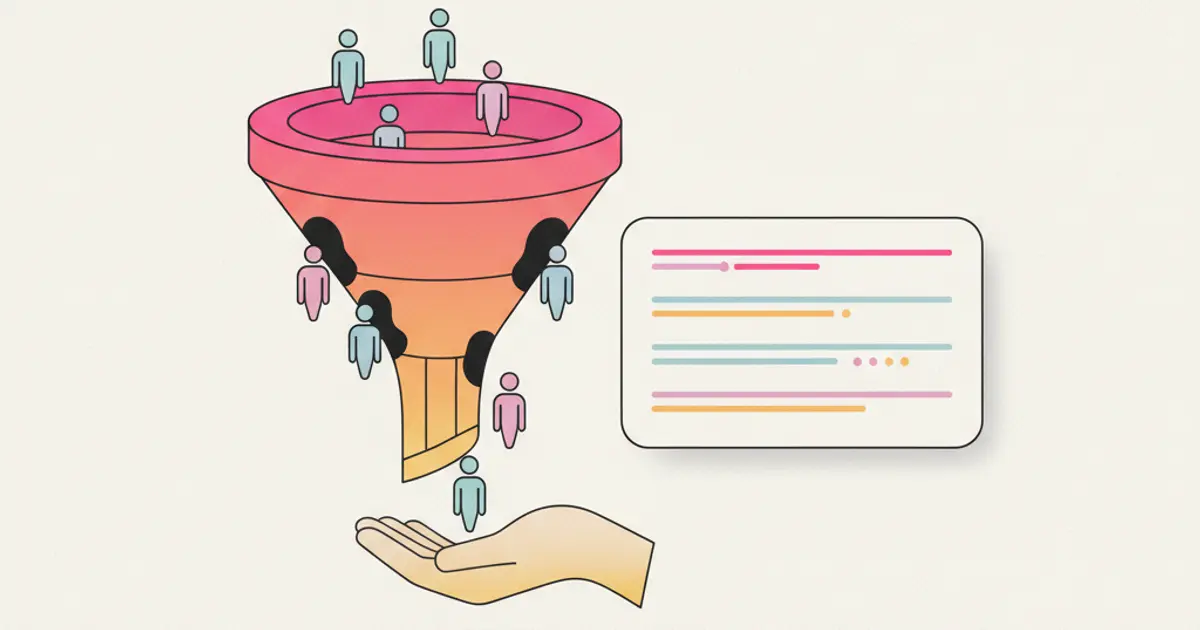
Google Ads leads reach a CRM by three routes, and most accounts use more than one: the lead form attached to the campaign, which hands each submission straight to your CRM; a form on your own site, where the job is carrying the campaign information across with the contact instead of losing it at the door; and the phone, for people who tap the number in an ad and fill nothing in.
If your campaign leads arrive as email notifications somebody reads when they can, by the end of this guide you will have a path from click to lead record, with the source attached and one person responsible for replying.
What you need before you start
- Edit access to the Google Ads account. Read-only is not enough: you cannot add a form or switch on call reporting with it. If an agency runs the account, ask for your own login.
- A campaign already live, or ready to go live. Build the collection path first and start the budget afterwards: first-week leads are the best and the easiest to lose.
- The CRM fields the data will land in. Decide now: name, email, phone, one qualifying value and a source field. Adding fields later means redoing the mapping.
- A decision on who gets notified. Not a shared address: a person, with a backup for their days off.
- Your privacy notice at a public URL, and the consent wording. Google requires a reachable privacy policy for lead forms, and you need one on your site form too.
Leads from the Google Ads lead form
The lead form is an asset attached to a campaign, so someone can leave their details without leaving the search results. It suits the short, urgent requests search brings: a quote, a callback, availability.
Create the form in the assets section of the campaign. You write a headline, a business name, a short description and the call to action. Keep the promise concrete: "ask for a quote" beats "find out more".
Ask for as few questions as you can defend. Name, email and phone cover almost every case, plus one qualifying question: the service wanted, the town, the rough size of the job. Every extra question costs completions.
Connect the form to your CRM with a webhook. The form settings include a delivery option that posts each submission to a URL you provide, with a key so the receiving side can verify the call. Point it at the address your CRM exposes for incoming leads and run the test Google offers there. The lead then appears in your list seconds after it was submitted.
Map each answer to a field, not a notes box. A value in a field can be filtered and used to route the lead; the same words in free text cannot.
| What the form sends | Where it belongs | Practical note |
|---|---|---|
| First and last name | Contact name fields | Often one string: decide how to split |
| Email and phone | Email and phone fields | The phone may carry a country prefix |
| Qualifying answer | List field (service, area) | Closed values can drive assignment |
| Campaign and form name | Source field | Tells you which ad pays |
Send one fake submission and follow it end to end. Check the fields land in the right place and the notification reaches the right person, then delete the test.
Leads from a form on your own site, with the campaign source
Plenty of campaigns point at a landing page instead, which is right when the offer needs explaining. Connecting that form works like any other: the procedure is in the guide on getting your website contact form connected to the CRM, whether the page runs on WordPress or anything else.
What changes is that nobody hands you the source. Two approaches hold up:
- Tracking parameters in the URL, read by the form. The ad destination carries campaign, ad group and keyword; a script reads them on page load and writes them into hidden fields that travel with the submission. This survives several campaigns pointing at one page.
- One hidden field with a fixed value per page. If each campaign has its own landing page, put the campaign name in a hidden field and stop: less flexible, far less to maintain.
Either way the value has to land in a source field on the contact, not in the body of an email. The test: open a contact from last month and see whether you can tell which ad produced it. Watch shop plugins such as WooCommerce, whose forms often ignore the site-wide setup.
Calls from your ads, recorded as contacts
On mobile a good share of search responses are phone calls, and that is where most lead lists go blind: unless somebody writes the caller down, the lead never existed.
Switch on call reporting in the account. Google can serve a forwarding number in place of yours, so it reports calls and tells you which campaign produced them. That is the measurement, not a contact record.
Make the record part of answering the phone. Whoever picks up opens a lead while they talk, sets the source to the phone and notes what was asked: thirty seconds during the call instead of ten minutes of reconstruction on Friday. A business VoIP service such as Voxloud gives you a call log to reconcile against.
Call back the ones nobody answered. Missed calls during a live campaign are your most expensive leads. A daily check of missed numbers recovers a fair share, and a WhatsApp message works for those who never pick up.
Alternative method: export and import, and why it is fragile
If none of the above is available yet, you can download lead form submissions as a file and import them. That is the right tool for one job: recovering leads collected before the connection existed.
As a routine it has three problems. The leads go stale: a request submitted on Monday and called on Thursday has usually been answered elsewhere. It depends on somebody remembering every day, including when they are ill. And Google keeps submissions downloadable only for a limited window, so check the current period in the Google Ads help pages before treating the file as an archive. If you download it every morning, switch the webhook on instead.
Speed and assignment: the part that decides the outcome
Someone who searched, clicked an ad and left their number is comparing you with the next two results right now. That is the difference from the leads in the companion guide on Facebook and Instagram leads in your CRM: higher intent, shorter window. Which makes first-response time matter more than the wording of the reply.
Automatic assignment to one named person. Round robin, by area or by service: the criterion matters less than the outcome, which is that every lead has an owner from the second it arrives. The rest of the logic, including what happens when nobody picks a lead up, is in the guide on how to assign leads to sales reps.
A notification that reaches a human, plus an acknowledgement to the lead. Flusia handles this with automations: a rule that notifies the owner and sends a short confirmation buys you time to call properly.
A reminder if nothing has happened. Not a report at month end: a prompt the same day, on the contact itself. Past the volume one person can work through in order, the qualifying answers let the queue sort itself, which is what automatic lead scoring does.
Consent and the data you can actually use
Consent is part of the build, not a tidy-up afterwards. The form links to a privacy notice that matches what you really do with the data, and marketing emails need a tick of their own, separate from the request to be called back, and stored with its date. In Italy the public reference is the Garante per la protezione dei dati personali; elsewhere, your national data protection authority. These are general indications: check your own case with your privacy adviser or lawyer.
Common mistakes
Losing the campaign source. Without it you cannot tell which ad brings customers and which burns budget, so next month's decisions get made on a feeling. If the source field fills itself on arrival, nobody has to remember.
Letting leads land only in a shared inbox. A mailbox three people can see is a mailbox nobody owns. The alert is fine, but the lead still needs a record with an owner and a next action: that is the argument of the guide on how to manage leads without losing them.
Collecting consent badly. One tick covering both the callback and the newsletter leaves you with contacts you are not comfortable emailing. Cheap to fix at the start, awkward at two thousand records.
How long it takes, and what comes next
Realistically: twenty minutes to build the lead form, twenty more for the webhook and a test submission, half an hour on the site form if parameters have to be read from the URL, ten minutes for call reporting. The slow part is earlier: agreeing the fields, the source values and who replies.
Once leads arrive on their own with a source and an owner, the problem moves to day three and day ten. If you are still choosing the system this lands in, the overview is on the Italian CRM for SMEs page.
Frequently asked questions
Should I use the Google Ads lead form or a landing page? They do different jobs. The form wins on simple requests and on mobile, with no page to load; a landing page wins when the offer needs explaining. Plenty of accounts run both and compare by source.
Can I import the leads with a file instead of connecting anything? Yes, and it is the right route for leads collected before the connection existed. As a daily habit it is fragile: contacts age while they wait, and submissions stay downloadable only for a while.
How do I know which keyword produced a lead? Through tracking parameters in the destination URL for site forms, and through the campaign and form name that travels with a lead form submission. A fictional example: a contact arriving as info@esempio.it with the source "autumn maintenance search" settles next month's budget.
How fast should you reply to a lead from a search campaign? Within fifteen minutes in working hours is the figure worth defending, with an automatic acknowledgement covering the rest. The person was looking for what you sell, and has other tabs open.
Share this article
Written by
Luca Bosso
Founder of Flusia
Related articles
How to Send Facebook and Instagram Leads to a CRM
How to get Facebook and Instagram lead form submissions into your CRM automatically: connecting the Page, mapping the fields and tracking the campaign.
How to Follow Up Trade Show Leads After the Event
How to follow up trade show leads from the drive home to the first call: import them without duplicates, qualify them, assign owners and reply on time.
How to Assign Leads to Your Sales Team
How to assign leads to sales reps without arguments: the four distribution rules, what happens when nobody picks a lead up, and the one number to track.