How to Send Facebook and Instagram Leads to a CRM
How to get Facebook and Instagram lead form submissions into your CRM automatically: connecting the Page, mapping the fields and tracking the campaign.

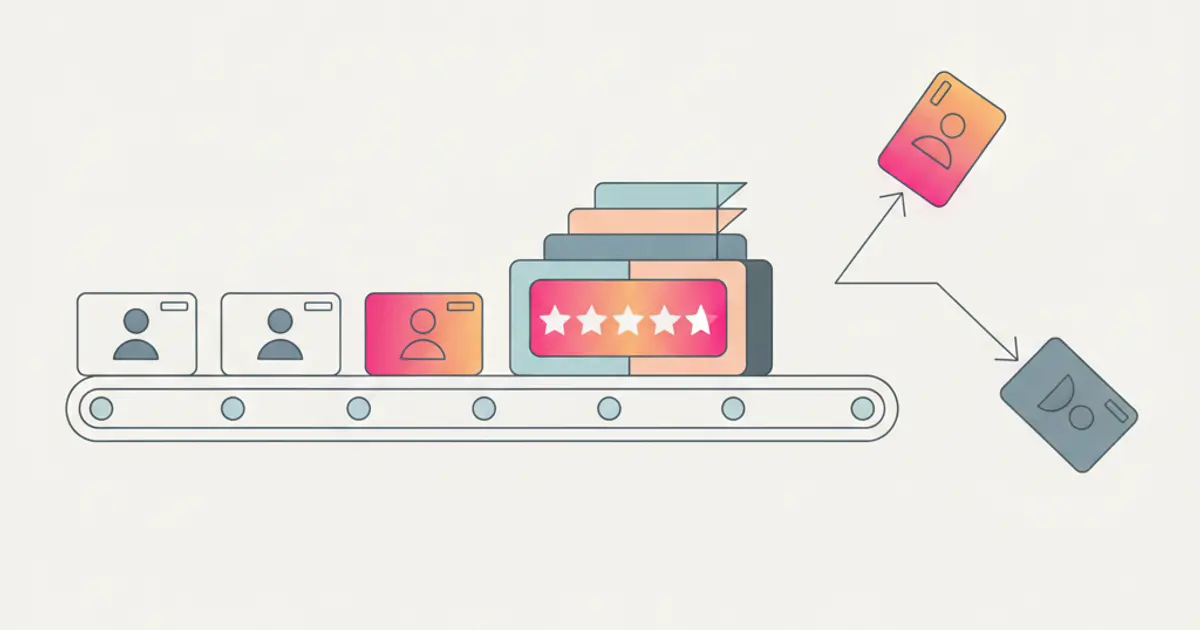
To send Facebook and Instagram leads to a CRM you connect your business Page through the Meta Lead Ads integration, pick the forms you want to pull contacts from, and decide which CRM field each form question maps to. From that point on, anyone filling in the form inside Facebook or Instagram lands in your lead list in real time, with the campaign source already recorded and a rep already assigned. Downloading the CSV by hand from Business Suite stays a fallback.
If someone currently logs into Meta every couple of days, downloads a sheet of contacts and pastes it somewhere by hand, by the end of this guide you will have an automatic path from the campaign form to the lead record, and a first reply that goes out in minutes rather than days.
What you need before you start
- Admin access on the Facebook Page running the ads: without that permission the connection stops at the first step. If the Instagram account is linked to the same Page, forms filled in on Instagram follow the same path.
- An instant form that already exists, because the CRM can only read forms that are there. Build the form first and connect afterwards: the other order forces you to redo the mapping.
- The list of form questions and a decision on where each answer ends up in the CRM. Five questions is already a lot inside a social feed: name, email, phone and one qualifying question cover almost every case.
- A publicly reachable privacy policy URL: Meta requires it for forms that collect personal data.
- An assignment rule already agreed and a written first response time. People fill these forms in two taps while scrolling, and remember doing it for a few hours: a lead like that called back three days later is almost always cold.
How to connect Facebook and Instagram forms to your CRM, step by step
Check your Page permissions before touching the CRM. Open the Page settings, go to the access section, and confirm your profile has full control. If an agency runs the campaigns, ask them to grant you lead access: it is a specific item, separate from permission to publish content.
Open the Meta integration in the CRM and authorise access. The connection starts from the Meta Ads integration page: press the connect button, sign in with the profile that administers the Page, and confirm the permissions in the Meta window. You will then see the Page appear among your connected sources.
Select the Page and the forms to connect. If you have several Pages, pick the one running the ads. Then switch the forms on one at a time, starting with the live campaign, instead of connecting the whole history and ending up with test forms and closed campaigns in the list.
Map every form question to a CRM field. This is the step that decides the quality of everything else. Match name, email and phone to the standard fields, and qualifying questions to fields that already exist rather than to free text notes: a value in a field can be filtered, the same information inside a paragraph cannot.
Set the source and the assignment rule. Make sure every lead coming in this way carries its origin ("Facebook" or "Instagram") and that the origin is one of the criteria used to hand the contact to a person. The full logic, including reassignment when nobody picks a lead up, is in the guide on assigning leads to sales reps.
Submit a test entry and watch where it lands. Meta provides a testing tool for lead forms: send a fake submission and check in the CRM that the lead appears, that the fields sit in the right place and that the notification reaches the right person. Then delete the test contact, or it stays in your numbers for months.
Decide what happens in the first ten minutes. The technical connection is half the job: the other half is somebody replying. An automatic confirmation message plus a human call within the time you wrote down is the difference between a list of names and a list of deals.
How to map the form fields without losing information
| Form field | Where it goes in the CRM | Practical note |
|---|---|---|
| Full name | Standard contact fields | Sometimes arrives as one field: plan how to split it |
| Main email field | The field these forms prefill best, so the most reliable | |
| Phone | Phone field | Often carries a country code: normalise the format on entry |
| Multiple choice question | List field (service, area) | Closed values, so it can drive assignment |
| Open question | Record notes | Useful to whoever calls, useless for filtering or segmenting |
| Campaign or form name | Source field | This is what tells you which ad brings real work |
The rule for any form inside a social feed is to ask for little: each extra question pushes completions down, and the answers that genuinely save work are two or three. The rest you ask on the first call.
What happens after the lead arrives: assignment and the first reply
A lead that sits in the CRM untouched is only a tidier CSV file. Three things decide the hour that follows.
The lead already has an owner. With the Meta integration, a contact from a form enters the pipeline already assigned to a rep, following the rule you set: by service, by area or in turn. Whoever owns it finds the form answers already in the record, so the first call does not open with "sorry, what was it you asked about?".
The first reply goes out where the person already is. Someone who filled a form from their phone reads WhatsApp sooner than email. With WhatsApp connected to the CRM, the rep writes from the lead record itself: the chat stays tied to the contact and a colleague who takes over sees the whole conversation. A text prepared once does most of the work: "Hi Giulia, this is Marco, about your quote request: can I call this afternoon?". If you use the WhatsApp Business API rather than a personal number, remember that Meta requires an approved template for the first message to someone who has not written to you yet. How a team shares one number is on the WhatsApp Business page.
The first contact ends with a next step and a date. Call back Thursday, send the quote, not interested: it goes on the record before the next lead.
If your contacts still reach you as a file to download, connect your Meta lead forms and try it free for 30 days, no credit card.
How to track the campaign that produced the lead
Knowing a contact came "from Facebook" is not much: you need to know which campaign and which form, because that is what tells you where to move next month's budget. If the source field fills itself on arrival, the data is there without anyone typing it: an overview of the channels the CRM collects contacts from is on the lead capture page.
Then it pays to separate, inside the same campaign, the contacts worth an immediate call from those that can wait. The qualifying answers exist for exactly that: if the CRM scores contacts on those values, the work queue sorts itself, as the guide on automatic lead scoring explains.
How to see which campaigns bring customers, not just contacts
The Meta dashboard tells you how many forms each campaign collected and what each one cost. It cannot tell you how many signed, because that happens later, in your CRM. A campaign with a cheap cost per lead can bring contacts nobody reaches, while a more expensive one brings fewer people who actually buy.
Joining spend and closed deals is what Marketing intelligence in Flusia does. Every lead carries its campaign, ad set and ad, so the spend from the connected ad account is followed all the way to the won or lost deal. For each campaign you see the cost per lead, the cost per customer acquired and the revenue it brought in.
A simple way to use it, once a month:
- Sort campaigns by cost per customer, not by cost per lead. It is the figure that says where the next share of budget should go.
- Check that every lead has an outcome. Without outcomes the report shows only contacts.
Running Google campaigns too? The setup is in the guide on sending Google Ads leads to a CRM, and both channels get compared on the same figure.
If the campaign points to a landing page instead of a Facebook form
Plenty of campaigns skip the instant form and send people to a page on your site. The path changes, the principle does not: the contact has to reach the CRM on its own. A landing page form connects like any other website form, and the procedure is in the guide on connecting your website contact form to the CRM.
Here the source does not come from the ad platform, so you have to build it. The two approaches that work are a hidden field in the form, filled with the campaign name, and tracking parameters in the URL, read by the form and stored with the contact. With one dedicated page per campaign, the first is simpler to maintain.
It is also the route for campaigns on platforms other than Meta, Google included: dedicated page, website form connected to the CRM, and the source written on the contact.
Alternative methods: webhooks and CSV import
When a direct connection is not an option (a platform with no integration, a custom form, a flow that goes through an internal system) two routes remain. The first is a webhook: the system collecting the contact posts it to a CRM address the moment it is submitted, and the lead arrives in real time. It needs someone to set the call up, but it is done once.
The second is CSV import, and it is a fallback: fine for historical data or a campaign already ended, not as a recurring routine. Somebody has to remember, the contacts sit still meanwhile, and downloaded files are not available forever. If you notice you download the file every Monday, that is the signal to switch the integration on.
Consent, privacy notice and personal data
Campaign forms collect personal data, so consent is not something to sort out later. The form has to link to your privacy notice, kept current and consistent with what you actually do with the data. If you also want to use that contact for marketing emails or a newsletter, that consent has to be asked separately from the request to be contacted back. And it has to be stored alongside the lead, with the date and the wording shown, because the value of a consent lies in being able to evidence it.
It is also worth deciding how long you keep contacts that never turn into anything. Rules differ by country: in Italy the public reference is the Garante per la protezione dei dati personali, elsewhere your national data protection authority. These are general organisational pointers: for your specific case, check with your own privacy adviser or lawyer.
Common mistakes
Launching the campaign before the connection. The most expensive one: your best leads are the ones from the first days. Connect and test with a fake submission before the budget starts, not after.
Connecting the forms and never touching the mapping. A lead arriving with a name and nothing else in the proper fields forces whoever calls to read through the notes. Five minutes of mapping are worth months of saved work for the person on the phone.
Never closing campaign leads. Contacts from ads answer less often than the ones from your website, and that is normal. The problem is when they all stay open: the list swells and the count of live deals goes false. Won, lost or to revisit with a date, as across the whole sales pipeline.
How long it takes and what comes next
Connecting the Page and selecting the forms takes around ten minutes, authorisation included; the field mapping and the test submission take another twenty. The long part comes earlier: deciding the questions, the source and who replies, half an hour with the right people in one room.
The next step is the work itself: once contacts arrive on their own with a source and an owner, the problem shifts to what happens afterwards, and the full sequence is in the guide on how to manage leads without losing them.
Flusia is an Italian CRM for small and mid-sized businesses and agencies: Meta lead forms arrive in the pipeline already assigned to a rep, website forms keep their source, WhatsApp runs from the lead record, and Marketing intelligence follows ad spend through to the closed deal. You can try it free for 30 days, no credit card required.
To see all of this on your own campaigns, connect your Meta lead forms and try it free for 30 days, no credit card.
Frequently asked questions
Why is downloading the lead file from Facebook not enough? Because between the submission and the call sit however many days it takes someone to remember, and a person who filled a form while scrolling forgets fast. The file also loses the source and triggers no notification: nobody knows the lead exists until they open the sheet.
Do Instagram submissions arrive the same way as Facebook ones? Yes, if the Instagram account is linked to the Page running the ads: you authorise once and it covers both platforms. It is still worth separating the origin in the CRM, because the two channels usually behave differently.
What happens to leads collected before the connection was set up? They have to be recovered by hand, exported from the platform and imported as a file: the one case where importing makes sense. Do it straight away and tag them with a different source, so they do not distort the numbers of live campaigns.
Can I see which ad produced a customer, and not just a lead? Yes, as long as the lead arrives through the integration and the deal is closed in the CRM. The contact keeps the campaign, ad set and ad it came from, so a won deal is counted against that campaign. Leads copied in by hand usually lose that link.
How fast should you reply to a lead from a social campaign? The figure worth defending is within an hour during office hours, with an automatic confirmation covering the rest. The person who filled the form was not looking for you: they were looking at something else. The closer the reply sits to the submission, the fresher the memory the conversation starts from.
Share this article
Written by
Luca Bosso
Founder of Flusia
Related articles
How to Get Google Ads Leads Into Your CRM
Three routes for Google Ads leads: the lead form connected to your CRM, a site form that keeps the campaign source, and calls recorded as contacts.
How to Know Which Ad Campaigns Bring Customers
To know which ad campaigns bring customers, link every lead to its campaign, close each deal in the CRM with a value, and compare cost per customer, not clicks.
How to Follow Up Trade Show Leads After the Event
How to follow up trade show leads from the drive home to the first call: import them without duplicates, qualify them, assign owners and reply on time.