How to Manage Online Bookings and Appointments
How to let clients book appointments from a public page: appointment types, real availability, calendar sync, automatic reminders and no double bookings.

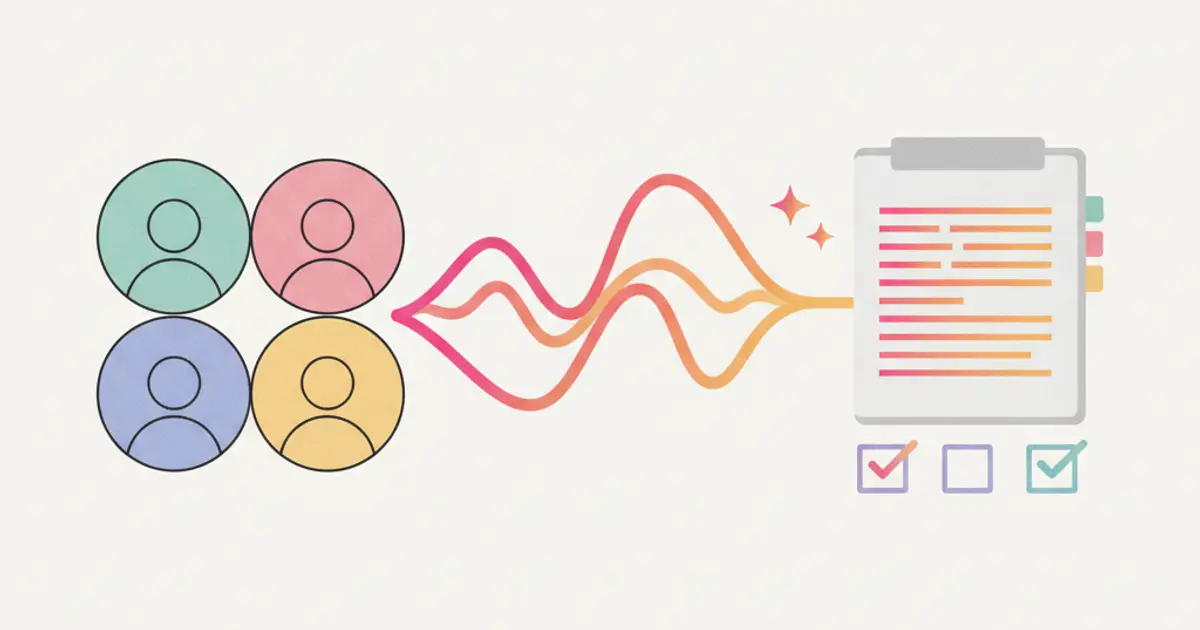
To manage bookings online you publish a booking page connected to the calendar of whoever takes the meeting, define your appointment types with their real duration, and declare the hours you are willing to be booked in. From then on the client picks a slot, the appointment lands in the calendar already assigned, and the reminder goes out without anyone writing it. Slots that are already taken never appear, so double bookings are ruled out upstream instead of being fixed afterwards.
If every appointment currently takes five messages back and forth ("does Thursday at 3 work?", "no, let's say Friday"), by the end of this guide you will have a public page clients use on their own, a calendar that does not overlap, and an automatic reminder that cuts down no shows.
What you need before you start
- The list of appointment types you accept, with their honest duration: first consultation, site visit, progress call. If a visit really takes fifty minutes, the type is fifty minutes, not thirty.
- The hours you want to be bookable in, decided properly. Not the whole working week: only the hours you are willing to give away without arguing.
- A minimum notice and a limit on how far ahead people can book (for example: no less than four hours before, no more than sixty days ahead).
- The credentials of the calendar your team already uses, if you want sync with Google Calendar or Outlook.
- A decision on who receives each appointment type, if more than one person takes meetings.
- The minimum details to ask for at booking time: name, contact, reason. Every extra field is one booking fewer.
If you do not know which types to start from, these four cover most cases and can be corrected after the first week.
| Appointment type | Typical duration | Minimum notice | Where it happens |
|---|---|---|---|
| First introductory consultation | 30 or 45 minutes | 4 hours | video call |
| Site visit or survey | 60 minutes, with buffer | 24 hours | client premises |
| Progress call on ongoing work | 20 minutes | 2 hours | video call |
| Paid consultation | as per your rate card | 24 hours | video call or office |
How to set up online booking, step by step
1. Define your appointment types before you open the calendar. In the booking section create one type for each thing you actually do, with a name the client understands, a duration and, where relevant, a price. After this step the client is no longer booking "an appointment" but "first consultation, 45 minutes", which is the difference between a calendar you can work from and one you rearrange by hand every morning.
2. Set real availability, not theoretical availability. Declare the days and hours that are bookable for each type, breaks included. If Monday morning is your internal meeting, Monday morning does not exist for clients. From this point the page only offers slots you are genuinely willing to honour, and you stop cancelling.
3. Connect the calendar to rule out double bookings. Turn on sync with the calendar you already use: slots are then calculated on actual availability, so a personal commitment on Google Calendar closes that window automatically. With Google Workspace connected the event is also created with its video call link, without you generating one each time.
4. Personalise the public page and put it where clients will find it. Give the page a recognisable address and place it wherever requests already arrive today: email signature, social profile, a button on your site, a quick reply on WhatsApp. A booking page that only lives inside your system gets used by nobody.
5. Turn on reminders and choose the channel. Set the automatic reminder by email and, where it makes sense, by WhatsApp. The right timing is usually twenty four hours before, plus a short one on the day itself for on site visits. The result is that clients turn up without anyone on the team having to chase them.
6. Decide what happens right after a booking. A booking is not just a calendar entry, it is a contact who raised their hand. Make sure that if the name is not already on file it becomes an assigned lead, with the preparation task already on the list. How to set those handoffs up once instead of repeating them is covered in the automatic workflows guide.
The variants: the same setup changes with the context
If bookings come from your website
The most common case is a "book a consultation" button on a service page. What matters here is keeping fields to a minimum and not asking for anything you can find out later: the booking replaces the contact form, it does not duplicate it. If the site already has a form producing enquiries, keep the two apart so you can see which one brings actual appointments rather than names to call back. Whoever arrives this way is a lead in every sense, and the usual rules of lead follow up apply so they do not stall.
If you see clients by appointment at your office
Professional firms, consultants, clinics: here the problem is not filling the calendar, it is protecting it. Three precautions do most of the work: a generous minimum notice (people who book for the next hour tend not to show), separate types for first visit and follow up, and a buffer between clients, because in real life sessions overrun. The rest of the habits of people working this way are collected in the guide to CRM for professional firms.
If several people take bookings
With two or more people receiving clients, the question becomes: who takes this one? The two sensible answers are by competence (the appointment type is tied to whoever handles it) or by rotation on availability. The rule to avoid is "whoever is free", which in practice always lands on the same person. If first contact comes through the company number, the same assignment logic applies to chats, as described in the guide to a shared WhatsApp number for the team.
If the appointment is paid
For a paid consultation, the price belongs on the appointment type and has to be visible before confirmation, not after. Even without taking payment upfront, having the amount on the appointment does two things: the client knows what they are booking, and the activity carries the value to be invoiced at month end instead of being reconstructed from memory.
Alternative method: the team member enters the booking
Not every client will book online, and that is fine. Whoever calls dictates the appointment to the person answering, who enters it from the internal calendar using the same appointment type the public page uses. That detail is what keeps both channels on one track: if phone bookings end up on a parallel calendar, overlaps come back the next day.
Common mistakes
- Opening the whole week. A calendar bookable from eight to eight fills up in the worst hours and leaves no room for the work itself. Fewer windows, properly defended.
- Optimistic durations. A type set to thirty minutes for a visit that needs fifty produces a chain of delays from the second client onwards.
- No reminder, or too many. Without a reminder no shows go up; with three messages for one appointment the client ignores all of them. One the day before, at most one on the day.
- Bookings that stay just events. If the appointment does not also create the contact record and the follow up task, nothing survives the meeting and the chasing starts from scratch.
How long it takes, and what comes next
Setting up appointment types, availability, calendar sync and reminders usually takes half a day, and the slow part is deciding the hours, not configuring them. A week of real bookings will tell you the rest: if the same two slots get picked every time, those are your real hours and you can close the others.
The natural next step is showing clients not only their next appointment but everything concerning them, which means opening the client portal on quotes, projects and documents. If you would rather see how the booking side works first, there is a page dedicated to online booking.
Frequently asked questions
Can clients cancel or reschedule on their own? That is the behaviour to prefer, because a self service cancellation frees the slot for somebody else while a phone cancellation has to be entered by hand. The practical advice is to allow rescheduling up to a cut off (twelve hours before, for instance) and to require direct contact after that, so the last minute stays your decision rather than a hole in the calendar.
How do you stop two clients booking the same hour? By connecting the calendar you already use, so slots are calculated on actual availability rather than a static table. The remaining risk is not technical but organisational: it appears when someone on the team keeps commitments on a calendar the system cannot read.
How far ahead should bookings be open? For consultations and calls, two or three weeks is usually enough: opening six months ahead fills the calendar with appointments that will be moved. The opposite limit matters more, since a minimum notice of a few hours prevents bookings you cannot prepare for.
Do you need a separate service for bookings? Not if the calendar, the client records and the tasks already live in one place: there the booking page is the last piece and belongs alongside them, because the appointment is created already linked to the client. A standalone service works, but it leaves someone with the job of copying over who booked and why.
Share this article
Written by
Luca Bosso
Founder of Flusia
Related articles
How to Reduce No-Shows With Appointment Reminders
How to set up automatic appointment reminders: how many to send, how far ahead, on which channel, what to write and how to handle cancellations.
Job management software: what it must do
How to choose job management software: the features that actually matter, how to test them during a trial, and the questions to ask in a demo.
How to Manage Service Jobs and Site Visits
How to manage service jobs and site visits: logging the request, scheduling the visit, briefing the technician, closing the job and quoting the extra work.