How to Build a Website Contact Form for Your CRM
A practical guide to contact forms: which fields to keep, how to publish the form, how to track the source with UTMs and send every entry into the CRM.

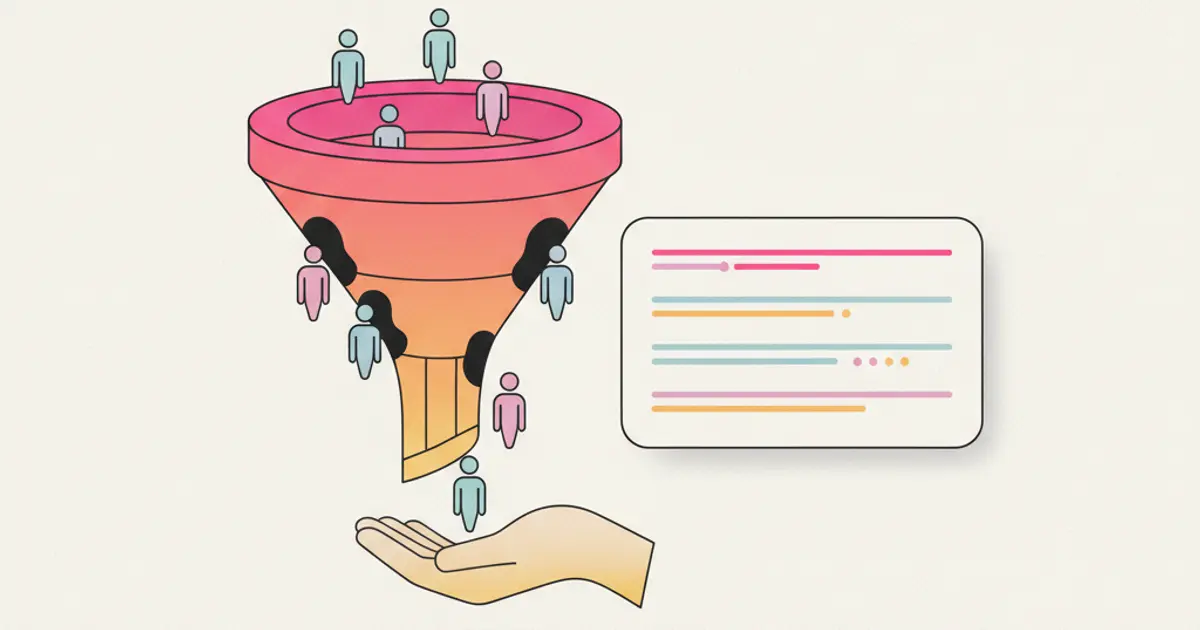
A contact form that actually works needs three things: few fields (name, email or phone, and one free text line), a destination that is not an inbox but the system where you track clients, and a confirmation message telling the visitor what happens next. Everything else, from the design to the number of buttons, matters far less than people assume. What really changes the outcome is who replies, and how fast.
If requests from your website currently land in a shared mailbox and some of them quietly go unanswered, by the end of this guide you will have a form published, connected to the right place, with its source tracked and a follow-up that starts on its own.
What you need before you start
- Access to the website with permission to edit a page, or the person who does it for you. On WordPress, editor rights on the destination page are enough.
- A company email address that receives a notification for every entry, even once the data lands in the CRM: it works as a safety net in the first few days.
- A decision on who replies: one person with a name, not "the office". A form with no owner produces requests that sit still.
- Your privacy notice, reachable through a link. If it does not exist yet, write it before publishing the form.
- Thirty uninterrupted minutes for the setup and one real test submission.
Which fields to keep, and which to drop
Every extra field is one request fewer. The working rule is to ask only for what you need to give a useful first answer: the rest comes up during the conversation, once the person has decided to talk to you.
| Field | Keep it? | Why |
|---|---|---|
| Name | Yes | You need it to reply without sounding anonymous |
| Yes | It is the default reply channel | |
| Phone | Only if you actually call | If you never call, it only slows people down |
| Company | Yes in B2B | It tells you immediately who you are talking to |
| Free text message | Yes | It is the field that reveals real intent |
| Budget | No, not on first contact | It causes drop-offs, and the answer is rarely accurate |
| How did you hear about us | No | You already know it from the UTMs, without asking |
In B2B, four fields plus one free text line is the most common balance point. If you are collecting newsletter sign-ups, the field count drops to one: the email address.
How to publish the form, step by step
1. Create the form. In Flusia open the Website forms section and create a new form, naming it after the place where it will be published ("Contact", "Homepage quote", "Services landing"). The name is for you six months from now, when there are five forms. At this point you will see the empty form, ready for fields.
2. Add the fields you chose above. Drag them into the order the visitor will read, and mark only email and message as required. Making the phone number mandatory is the most frequent cause of abandonment on this kind of form.
3. Write the button label. Not "Submit", which promises nothing: "Get an answer" or "Request a quote" say what will happen. It is the quickest change with the most visible effect on completed submissions.
4. Turn on spam protection. Enable the form's spam check before publishing, not after the first automated entry arrives. A public form without protection starts collecting spam within days, and spam in the CRM is worse than spam in an inbox: it pollutes your contact records.
5. Choose where entries go. Connect the form to the pipeline where the new contact should appear, and assign an owner. This is the step that turns a form into a sales tool: from here on, every entry is a lead with a status, not an email to remember.
6. Write the confirmation message. After submitting, the visitor should read something concrete: who will reply, and within how long. "Marco will get back to you within one working day" beats "Thanks, we will contact you soon".
7. Publish the form on the site. Copy the embed code and paste it into the page where it should appear. Save the page and open it on a phone, not just on a desktop: most submissions come from mobile, and that is where overly long forms show their true size.
8. Run a real test. Fill in the form on the live page with test data (for example Mario Rossi, mario.rossi@esempio.it) and check three things: the contact appears in the CRM, the assigned person receives the notification, and the visitor sees the confirmation message. If any of the three is missing, the form is not ready.
Variant: the quote request form
When the form collects quote requests, one thing changes, and it changes a lot: you need two or three questions that let you prepare a sensible answer without a preliminary phone call. For a service business, the type of work, the size or quantity, and the desired timing usually cover it.
Be careful not to turn it into a questionnaire. The test is simple: every question must change the quote you will write. If the answer does not move the final number, ask it later. How the offer is built from these details is covered in the guide on quote management.
Variant: forms on a landing page or behind a QR code
If the form serves a campaign, do not put it on the generic contact page: put it on a dedicated page that talks about that topic only. Someone arriving from an ad has a specific question in mind and should be met with the same promise they read in the ad.
The same form can also live off the website: a QR code printed on a brochure, on a trade show sign or on the back of a business card leads to the same page, and the source stays distinguishable from web contacts. Requests land in the same pipeline, so you are not maintaining two separate lists. The full picture of entry channels, from the website to social, is on the lead capture page.
Variant: newsletter sign-up
Here the few-fields rule becomes extreme: one field, the email address, and a button. Consent, however, must stay separate: subscribing to a newsletter means agreeing to receive periodic communications, which is a different thing from asking for information. Keeping the two consents apart avoids ending up with a subscriber list that never actually asked to be on it.
Alternative method: let them book instead of write
For some businesses a form is not the best choice. If the natural first step is a call or an appointment, a booking page with available slots shortens the path: the person picks a slot and the conversation is already scheduled, with no back and forth to find a time. This applies especially to consultants, professional firms and appointment-based services. The procedure is described in how to manage online bookings.
Nothing stops you from keeping both: a form for people with a written question, a booking page for people who want to talk. The mistake is putting them side by side with equal visual weight, because the choice itself slows people down.
How to know where each request comes from
A form that does not track its source produces a list of identical-looking contacts, and the question "which channel brings requests?" gets answered by gut feeling. The source is recorded through UTM parameters: the labels you add at the end of a campaign link to say where the click came from.
Add the parameters to the link you publish. A campaign link becomes, for example, https://yoursite.com/contact?utm_source=newsletter&utm_medium=email&utm_campaign=august. The three useful parameters are utm_source (where the link is published), utm_medium (the channel type) and utm_campaign (the initiative).
Check that the information reaches the lead. Run a test submission using the tagged link and confirm the source appears on the contact record. If the form collects the data but loses the source, a month later you will have the contacts and no idea what to credit them to.
A written naming convention matters more than any tool: if three people write newsletter, Newsletter and news, your reports will show three channels that are in fact one.
What must happen right after submission
The form is the easy part. What decides whether a request becomes a client is what happens in the following minutes. Three automations cover almost every case:
- Assignment to a person, with a written rule (round robin, by area, by request type). An unassigned lead is nobody's lead.
- A confirmation email to the requester, naming who will follow up. It reduces the number of parallel requests sent to other suppliers while they wait.
- A reminder to whoever must reply, if after a set time the request is still sitting in the first stage.
These three steps are configured once and apply to every request that follows: the general procedure is described in the guide on automated workflows. If requests are many and not all worth the same, the next step is prioritising them, as shown in the guide on lead scoring.
Privacy and consent: what goes under the form
A form collecting a name and an email collects personal data, and whoever fills it in has the right to know who processes it and why. In practice, below the fields you need a visible link to the privacy notice and a separate consent checkbox for any later commercial use, which must not be pre-ticked.
Two general points that hold in most cases: consent to answer a request and consent to send promotional communications are two distinct things and should be kept separate; collected data is not stored forever, but for as long as the purpose requires. These are general indications: for the exact wording of your notice and for your specific situation, check with your privacy advisor and refer to the official guidance of your national data protection authority. How that data is then stored in the CRM is covered in the guide on CRM and data protection.
Common mistakes
Sending entries only to a shared mailbox. This is the mistake that costs the most requests: nobody owns it, everyone assumes someone else replied, and the email drops below the others within half a day. The right destination is the system where contacts have a status.
Asking for too many fields to filter out unserious requests. The filter does not work: genuinely interested people fill it in anyway, but you also lose part of those who were interested and in a hurry. Filtering happens afterwards, in the first reply.
Not testing the form after every website change. A theme update or a page change can break the embed without anyone noticing, and the silence looks like a drop in demand. One test submission a month, with fictional data, prevents months of lost requests.
How long it takes to set up
Creating the form and publishing it usually takes half an hour. The automations that follow take another hour, and should be done straight away: a connected form without follow-up works for a week, then requests start piling up again. The real time is the decision on who replies, which is an organisational choice, not a technical one.
Now that requests enter the system with their source tracked, the natural next step is organising what happens afterwards: how to follow them without losing any is explained in how to manage leads. If you want to see how the form looks inside the CRM, the reference page is website forms.
Frequently asked questions
How many fields should a contact form have? Three to five in B2B, just one for a newsletter sign-up. Every additional field must be justified by a concrete use in your first reply: if the data does not change what you write, ask during the conversation. The field that most often turns out to be unnecessary is "how did you hear about us", because the same information arrives through UTM parameters without bothering anyone.
Is it better to receive entries by email or inside the CRM? Both, with different jobs: the email notification tells you a request has arrived, the CRM record is what you work on. If only the email remains, a month later you cannot say how many requests came in, how many were answered and how quickly, because that measurement does not exist in a mailbox.
Do I still need a form if my WhatsApp number is on the site? Yes, because they catch different people. Someone writing on chat wants an immediate reply; someone filling in a form often does it outside working hours, or prefers to put a detailed request in writing. What matters is that both channels land in the same list, otherwise you end up with two separate queues and two sets of priorities.
How do you tell spam from a real request? Automated entries usually have generic English messages with a link, inconsistent field content and clustered night-time timestamps. Beyond the form's spam check, the practical defence is not publishing your company email in plain text next to the form: much of the spam comes from automated harvesting of addresses on public pages.
Try Flusia free for 30 days
No credit card required. Up and running in less than 24 hours.
Get startedShare this article
Written by
Luca Bosso
Founder of Flusia
Related articles
How to Manage Leads Without Losing Them: 7 Mistakes Costing Your SME Sales
Discover the 7 most common lead management mistakes and how a structured CRM can help your SME stop losing sales opportunities.
How to Know Which Ad Campaigns Bring Customers
To know which ad campaigns bring customers, link every lead to its campaign, close each deal in the CRM with a value, and compare cost per customer, not clicks.
CRM for Training Companies: Managing Course Sales
How a training company can use a CRM: enquiries from ads and the website, a pipeline per course, quotes from the catalogue, sales reps, commissions, invoices.