How to Set Up a Client Portal for Your Business
How to set up a client portal step by step: what to prepare, which permissions to grant, and how to publish documents, quotes and project status.

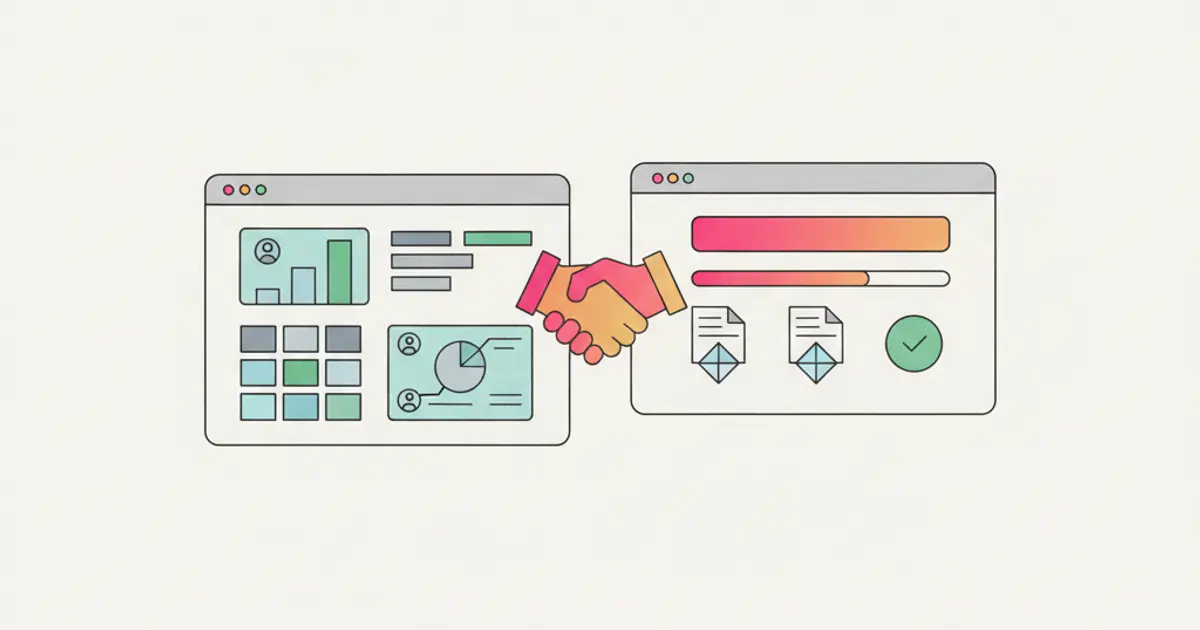
To set up a client portal you first decide what each client is allowed to see, then clean up your contact records so every contact person has a valid email address, enable portal access from your system and send the invitation. From that moment the client signs in with their own credentials and finds only the documents, quotes and work status that concern them, without emailing you for them. The technical part is the shortest one: the real work is choosing what gets published and what stays internal.
If you currently send contracts, reports and updates as attachments scattered across twenty email threads, by the end of this guide you will have a live client area for a pilot group, with permissions you decided yourself, and one address to point people to whenever somebody asks you to resend a file.
Why this channel is worth opening, what changes in the relationship and which objections clients raise are covered separately in the guide to the client portal in a CRM. This one is only about how you put it in place.
What you need before you start
- Clean client records, with correct company names and at least one contact person each. If your contacts still live in a spreadsheet, now is the moment to fix that: the procedure is in the guide on importing your customer list.
- A personal, valid email address for every person who will sign in. Not the generic info@esempio.it inbox shared by six people: access is per person, and with a shared mailbox you never know who downloaded what.
- A decision on what to publish, made before you switch anything on and written down. This is the step most companies skip, and the one that later produces awkward phone calls.
- Documents already sorted by client and by year. A portal opened onto a messy folder shows the mess, it does not fix it.
- One person responsible for uploading and updating. If the job belongs to everybody, three weeks later the client area is still stuck in July.
- An invitation message written in advance, ready to reuse. Two lines explaining what the client will find and who to write to if they cannot get in.
On choosing the content, this grid covers most cases and can be corrected after the first few clients.
| Content | In the portal | Reason |
|---|---|---|
| Quotes sent and accepted | yes | clients look for them constantly |
| Signed contracts and attachments | yes | ends the "I cannot find it any more" loop |
| Progress on the work | yes, in summary form | cuts down status requests |
| Invoices and payment due dates | yes, if finance agrees | mind the bank details |
| Internal notes, margins, supplier costs | no | none of the client's business |
| Drafts not approved internally | no | one draft seen by mistake costs a round of meetings |
How to set up the client portal, step by step
1. Pick ten pilot clients, not all of them. Take the ones who write most often asking for documents and updates: they are the ones who actually need the portal, and they will tell you immediately if something is off. At the end of this step you have a short list with company, contact person and email, and you are not risking embarrassment across two hundred records at once.
2. Define access levels before you invite anybody. In the portal settings decide what a contact person sees: two profiles are usually enough, one that can view and download everything concerning their company, and a narrower one, for example the technical office that sees the work but not the amounts. The expected result is a written rule, not a decision taken client by client at invitation time.
3. Enable access on the client record. Open the record, go to the portal access section and enable the contact person with their email address. If one person looks after two related companies, add them on both records with the same address: they sign in once and choose which of the two they want to look at.
4. Connect the content that already exists. Nobody opens an empty portal twice. Before sending invitations, make sure every pilot client finds at least three things: the latest quote, the current contract and the status of the open job. If you still write quotes outside your system, fix that piece first, following the guide on how to write a quote.
5. Test it with your own address. Create a test access on a dummy record for "Verdi Studio" with the email prova@esempio.it, sign in as if you were the client and look at exactly what they see. It is the only check that catches a supplier cost left visible or a document uploaded into the wrong folder before the client does.
6. Send the invitation and say what is inside. The automatic activation message on its own is not enough: alongside it, write two lines saying what the client will find and what they will not. An invitation without an explanation lands in the promotions tab and nobody opens it.
7. Close the old channel, politely. For two weeks keep answering requests by email, but attach the link to the portal page instead of the file. The result is that the client learns where to look without feeling pushed away, and from the following month the resend requests drop on their own.
How the client area is built and what it can contain is on the dedicated client portal page.
A client portal for a professional firm
In an accounting, legal or engineering firm the portal does two things above all: it delivers documents without heavy attachments, and it collects the ones the client owes you. The effort moves from your side to theirs, which is where it belongs.
The structure that works is one folder per year and one per document type, with names you decide and never leave to the client. Ask clients to upload their documents there instead of attaching them to emails: the practical difference is that at year end the file is already complete, instead of being rebuilt by searching three people's mailboxes.
Personal data flowing through a client area deserves a moment of thought: named accounts, immediate revocation when a contact person changes company, and a record of who saw what are the three things that make life easier if a client ever asks questions. General guidance on holding client data in a business system is in the guide to GDPR and data protection; for your specific situation the official source is your national data protection authority, together with your own advisor.
A client portal for an agency: work status and approvals
For an agency the portal is not an archive but a status board. The client wants to know where the campaign stands, what they are waiting for and what you are waiting for.
The mistake to avoid here is showing the internal plan with every task on it. The client does not need to see that the designer is three days late: they need the current phase and the next delivery. Publish a summary view by phase and keep the operational detail inside, along the lines described in the guide to project management with Gantt and Kanban.
The other useful function is approval. A delivery stuck because nobody answered an email costs more than producing it: putting the material to approve in the portal, with a date by which you need an answer, moves the ball visibly. If the client then wants to comment, keep the conversation in one place instead of splitting it between the portal and private chats, as described in the guide to integrated team chat.
A client portal for a service business: jobs and support
Maintenance, installations, technical support: here the client asks three questions, and always the same three. When were you here, what did you do, when are you coming back.
A portal that answers those three contains the job history with a date and a one line summary, the documents for the equipment or system, and the expiry dates of the support contract. A plausible example: client Rossi Impianti signs in on 3 September, sees the 12 August job with the note "valve replaced, 12 month warranty", the signed report attached and the next scheduled check in February. No phone call to the technician to find out what happened that day.
If you work with several technicians, the practical rule is that a job report only becomes visible after the coordinator confirms it. The portal shows finished work, not work still being written up.
Alternative method: sharing a single document by link
Not every client needs an account. For a one off job, for a quote sent to a new contact, or for a customer who will never sign in to anything, the shortest route is sharing the single document through a dedicated link, with no credentials.
It has two advantages: it takes five minutes and it does not ask the client to remember a password. It also has a real limitation worth knowing: a shared link can be forwarded to anyone. So use it for documents that contain no sensitive data, give it an expiry date where possible, and keep named access for everything else.
A sensible way to combine the two: direct links for quotes while the deal is still open, portal accounts from the moment the client signs. Whoever becomes a client receives credentials together with the order confirmation, and activation stops being a separate project.
Common mistakes
- Opening everything to everybody. The temptation is to give the whole database access in one afternoon. The first client who sees a document that is not theirs undoes months of trust: start with ten clients and widen after the check.
- A portal switched on and never updated. A client area stuck three months in the past is worse than none, because the client signs in, finds nothing new and goes back to emailing you. If nobody owns the uploading, the portal is not ready.
- Access that stays open. The contact person moves to another company and their login still works. It is worth putting an access review in the calendar every six months, and revoking immediately when you are told.
- Expecting the client to work it out alone. The automatic invitation explains nothing. Two lines written by you, with an example of what they will find, completely change how many people actually sign in.
How long it takes, and what comes next
With records already in order, defining permissions, enabling ten pilot clients, testing and sending the invitations usually takes one working day. If you still have to sort out documents and contacts, plan for a week: the slow part is the tidying, not the switching on.
After the first month look at one number only: how many of the invited clients signed in at least once. If very few did, the problem is almost never the portal itself but the fact that there was nothing useful for them inside it.
The natural next step is connecting to the portal the thing clients want to see first, which is up to date work status that nobody has to retype. How the two parts fit together is explained on the client portal page.
Frequently asked questions
Does the client have to install anything to sign in? No, a client area opens in the browser with the credentials received by email, on a computer as much as on a phone. If you are comparing options, this is the first thing to check: every extra step, from an app to download to a code to request, sharply reduces how many clients actually get in.
How do you handle several contacts at the same company? You create one login per person, never a shared one, and differentiate permissions where it matters: finance sees documents and amounts, the technical contact sees work status. A single login passed around looks easier on day one and becomes unmanageable the moment somebody leaves.
What if a client never uses the portal? It happens, and it tells you something. Keep sending them the document as before, but attach the link to their page as well: after a few months some of them switch on their own. Forcing adoption by removing the other channel only works with clients who are already on your side.
Do you need the client's consent to open an account for them? You are giving somebody who already works with you a way to consult documents that concern them, so this is more a matter of transparency than of authorisation: telling them what the client area contains and who has access is the reasonable practice. General guidance on handling personal data is published by your national data protection authority, and for your specific situation it is worth checking with your own advisor.
Share this article
Written by
Luca Bosso
Founder of Flusia
Related articles
Job management software: what it must do
How to choose job management software: the features that actually matter, how to test them during a trial, and the questions to ask in a demo.
How to Manage Service Jobs and Site Visits
How to manage service jobs and site visits: logging the request, scheduling the visit, briefing the technician, closing the job and quoting the extra work.
How to Sync Contract Data With Your CRM
How to sync contract data between your CRM and your management software: who owns each field, which way the sync runs and how to check nothing is lost.