How to Set Up Automatic Replies on WhatsApp
How to set up away messages, greetings and quick replies on WhatsApp Business: what to write, how to run them as a team and the mistakes that cost you leads.

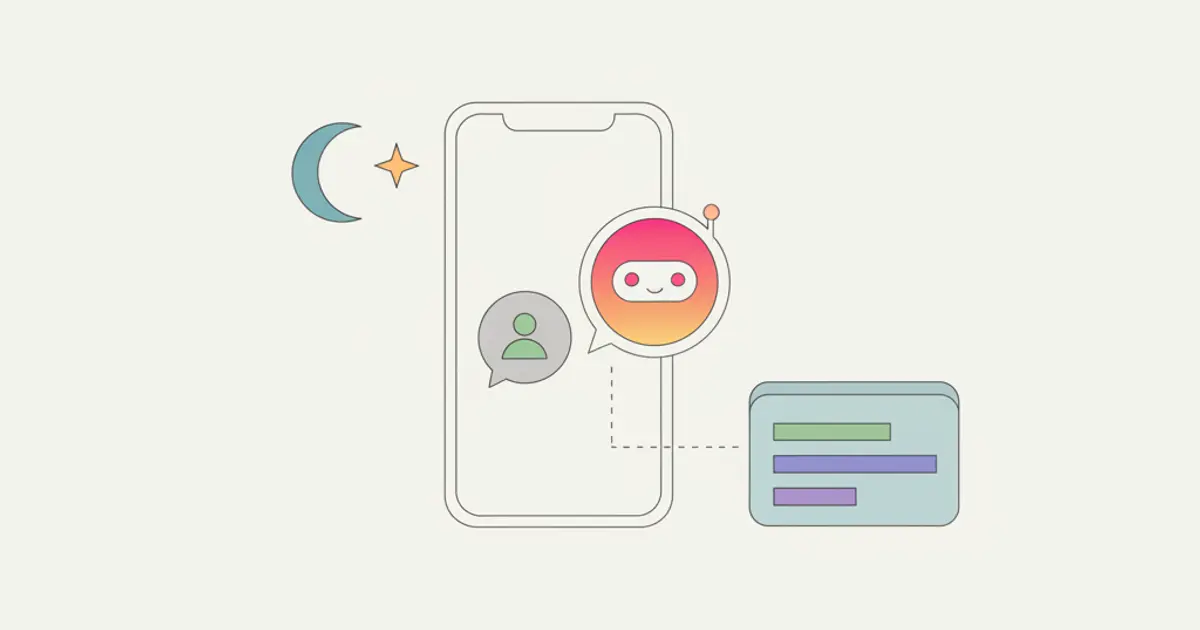
Automatic replies on WhatsApp are set from the business tools of the WhatsApp Business app and come in three kinds: the away message, which fires outside the hours you define, the greeting message, which reaches anyone writing to you for the first time or after a long gap, and quick replies, which are ready-made texts you pull up manually with a shortcut. The first two fire on their own, the third saves time for whoever is answering. None of the three replaces a real reply: they exist to say when one is coming.
If you get messages in the evening and at weekends, and you can see people giving up before they even know whether anyone has read them, by the end of this guide you will have the three automations in place, the texts to use, and a way to tell which requests need handling now and which can wait for opening hours.
What you need before you start
- The WhatsApp Business app installed on the company number, not the personal app: automatic replies are a feature of the business version. The number has to be the one you publish on your website and documents, otherwise you are automating a channel nobody uses.
- The hours somebody actually replies, not the ones on the door. If the office opens at 8:30 but messages get read from 9:00, put 9:00: a promise missed by half an hour costs more than silence.
- A response time you can hold on bad days too. Better to say "by the next working day" and always keep it than to promise two hours and miss one time in three.
- The three or four questions you get most often, with the answer written the way you would write it by hand. That is the raw material for quick replies.
- An alternative address or link to put in the away message for genuine emergencies: a contact page, a form, the switchboard number. Anyone in a real hurry needs a road.
How to set up the away message, step by step
Open Settings and go to Business tools. This is the section holding your profile, catalogue and automations. If you cannot see it, you are on the personal app: the feature does not exist there and the business app has to be installed on the number.
Tap Away message and turn the switch on. The text field opens right below. Write two sentences: when the message will be read, and what someone who cannot wait should do. For example: "Thanks for writing. The office replies Monday to Friday, 9:00 to 18:00, and we will get back to you when we reopen. For urgent matters on work in progress, write to support@example.com".
Choose the schedule. The options are always send, send outside business hours, or a custom schedule. The second is the right one for most companies, and it needs the hours filled in on your profile: if the profile is empty, the message either never fires or fires all the time.
Set the recipients. You can send it to everyone, exclude saved contacts, or limit it to a few. In a small company leave it on everyone: even a long-standing client would rather know their message will be read on Monday than stare at two grey ticks.
Save it, then test it from another number, out of hours. It is the only way to see what the customer actually gets. You should receive the text within seconds: if nothing arrives, nine times out of ten the business hours are missing from the profile.
How to set up the greeting message
The greeting message sits in the same Business tools section and fires when someone writes to you for the first time or after fourteen days of silence. It is not a courtesy welcome: it is the place to ask for the one piece of information you always need.
Turn on Greeting message and write a request, not an introduction. The text that works is short and ends with a question: "Hi, thanks for getting in touch. So we can answer faster, tell us your company name and what you need: a quote, support on work in progress, or something else." Anyone answering that question has already given you what you need to route the conversation.
Do not repeat what the customer has just read. If the message fires right after someone clicked a button on your website, saying who you are again adds nothing. The greeting matters most for contacts arriving from a number found on Google or passed on by another client.
How to create quick replies
Quick replies are saved texts you pull up by typing a slash and a keyword. You create them from Business tools, Quick replies, with the add button at the bottom right.
- Pick the three questions you get most often: hours and address, delivery or callout times, how to request a quote. It is almost always those.
- Write the full answer once, with the right link inside it. Rewriting it by hand every time makes it shorter and less clear by the third go.
- Give it a shortcut that recalls the question, say /hours, /times, /quote. Cryptic shortcuts get used by nobody.
- Add keywords so you can find it in search, and read the text out loud: a quick reply that sounds like a form letter needs rewriting.
Quick replies stay tied to the phone you create them on. That is the first limit you hit once more than one person is answering, and the reason the channel eventually has to move to shared handling.
Variant: when several people answer the same number
The WhatsApp Business app is built for a single phone. Once two or three people are replying, the automatic messages still work but everything around them frays: nobody knows whether a request has been picked up, quick replies live on one device, and the history walks out with the phone of whoever changes role.
With a number shared across operators, conversations land in a common list, every chat has a visible owner, and recurring texts are available to everyone. How it works is described in the guide on one WhatsApp number for the whole team, while the Flusia business WhatsApp page shows how conversations stay linked to the customer record.
In this setup automation can go beyond the three basic messages: depending on the tool, rules can assign the conversation or send a reminder to whoever took it on. The criterion for deciding what to automate and what to leave alone is the same as for any other process, and it is in the guide on automatic workflows.
What to write in automatic messages
| Situation | What it must contain | What to avoid |
|---|---|---|
| Out of hours | When you will reply and a route for emergencies | "We will get back to you as soon as possible", which says nothing |
| First contact | A question that qualifies the request | The long company introduction |
| Holiday closure | Exact closing and reopening dates | Leaving last week's message running |
| Quote request | The two or three details you need to prepare it | Asking them to call back during office hours |
One criterion holds all the cases together: an automatic message has to cut the perceived wait or save a round of questions. If it does neither, it is just taking up space in the conversation.
Common mistakes
Leaving the away message on while the office is open. It nearly always happens after a holiday, with a custom schedule forgotten on past dates. The customer gets "we are closed" at ten on a Tuesday and goes elsewhere. It is worth checking the automation every time your hours change.
Promising times the team cannot hold. "We reply within an hour" sent automatically and then missed does more damage than silence, because it turns a normal wait into a broken promise. Pick the time you can hold on your worst day, not your best.
Using automation to answer on the merits. An automatic message trying to give prices or technical solutions almost always misses, because it never saw the question. Its job is to manage the wait and gather information: a person gives the answer, and on WhatsApp it lands far sooner than it would by email, as the guide on WhatsApp as a sales channel shows.
How long it takes and what comes next
Setting up the three automations takes around twenty minutes, most of it spent writing the texts. Testing from a second number, out of hours, takes another five, and it is the part almost everyone skips and needs most.
The natural next step is deciding what happens to the message after the first reply: who picks it up, where the request ends up, and how you find it again in a month. That is the point where the channel stops being a chat and becomes part of the sales process, and the path is described in the guide on WhatsApp Business connected to your CRM.
Frequently asked questions
Do automatic replies work on the regular WhatsApp app? No. Away messages, greeting messages and quick replies are features of the WhatsApp Business app. On a company number it is worth installing that one: the switch keeps your conversation history and is reversible, but any given number can be connected to only one of the two apps at a time.
How many automatic messages does a first-time contact get out of hours? Two, if you have both the greeting and the away message on: the greeting first, then the away message. That reads as one too many, so either keep the greeting very short or limit it to opening hours and leave only the away message running after close.
How do you write an away message for the holidays? With exact closing and reopening dates, a route for emergencies, and no promise of reading anything in the meantime. Use the custom schedule and set yourself a reminder to switch it off on the day you are back, because switching it off is the part everyone forgets.
Can you send automatic messages to people who have not written to you first? The automatic replies described here only fire inside a conversation the customer has opened. Sending communications to contact lists follows different rules, needs consent collected in a verifiable way, and has to be assessed case by case: for commercial messaging to lists it is simpler to stay on the channels built for it, such as a newsletter run from the CRM. These are general pointers: for your own case check with your adviser and refer to the guidance of your national data protection authority.
Share this article
Written by
Luca Bosso
Founder of Flusia
Related articles
How to Send WhatsApp Messages to Multiple Customers
How to send WhatsApp messages to multiple customers: broadcast lists, the 256 contact limit, segmenting from your customer records and mistakes to avoid.
How to Send a Quote on WhatsApp
How to send a quote on WhatsApp: PDF or link, from phone or desktop, what to write with it, and how to handle the reply, the acceptance and the follow up.
How to Get Google Ads Leads Into Your CRM
Three routes for Google Ads leads: the lead form connected to your CRM, a site form that keeps the campaign source, and calls recorded as contacts.